 Newshot
This free app connects your Android phone to your Windows PC wirelessly
No subscriptions, accounts or extra programs taking up space on your PC.
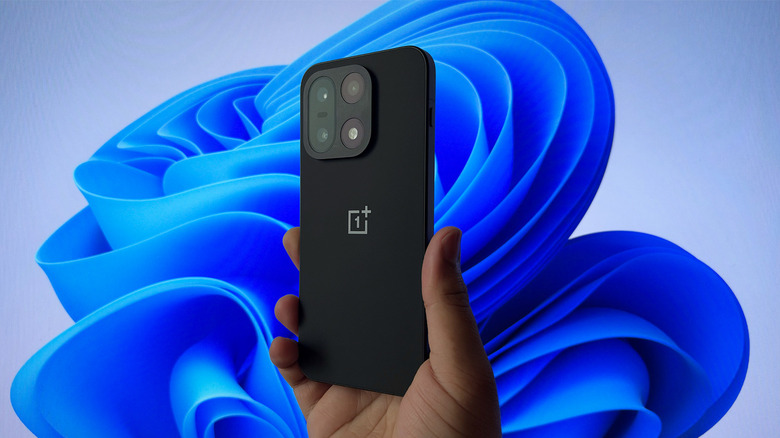
Moving files between an Android phone and a Windows PC is broadly a solved problem. You can use a cloud service like Google Drive as an intermediary, although uploading from one device and downloading on the other can be time-consuming. Connecting via USB is also an option, though you lose the convenience of a wireless connection. Quick Share on Android offers a good middle ground, letting you transfer files directly.
None of these help if you need to do more than move files around, though. For that, you'll need third-party programs that offer more features, like a media browser and phone mirroring. The downside is that they often require installing software on both devices and often charge a subscription fee. PlainApp, though, is different: it's a free, open-source program that lets you view and manage your Android phone's files on your computer — without installing any additional software on your PC. It also doesn't ask you to create an account or log in.
PlainApp is available on the Play Store and supports phones running Android 9 or newer. To use it, install the app, grant it notification and file access permissions and note the URL it displays. As long as your computer is connected to the same Wi-Fi network as your Android phone, you can access your phone's files wirelessly through any web browser at that URL.
Everything you can do with PlainApp
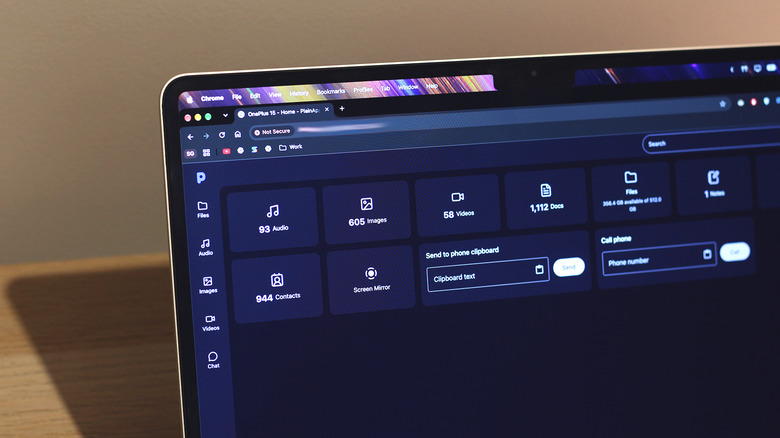
PlainApp uses a self-signed TLS certificate, so your browser will show a warning the first time you access the URL. Click on Advanced > Proceed to bypass this warning. Finally, click Log in and tap Allow on your phone when prompted. Once connected, you can view and manage images, videos, music and contacts stored on your Android phone straight from your computer's browser.
The web app's user interface is simple but modern enough to feel like a polished application rather than a basic file transfer utility. The Files tab lets you browse all accessible folders and files, as well as transfer files both ways. You can send text to your phone's clipboard, call a number directly from the web GUI and use a screen-mirroring feature that shows your phone's screen in your computer's browser. PlainApp says that remote control is possible here — much like iPhone Mirroring on macOS — but I couldn't get it to work on my phone.
PlainApp's media viewer handles images and videos and shows them in original quality. If your browser does not support HEVC video playback, PlainApp will automatically convert the video to H.264. You can also use the built-in image editor, which offers basic tools for cropping, adding text or drawing directly on your photos. There's also a music player if audio's more your thing. Overall, while Quick Share is still faster for transferring photos or videos, PlainApp is much more versatile if you want to browse and organize more of your phone's contents wirelessly.