 Newshot
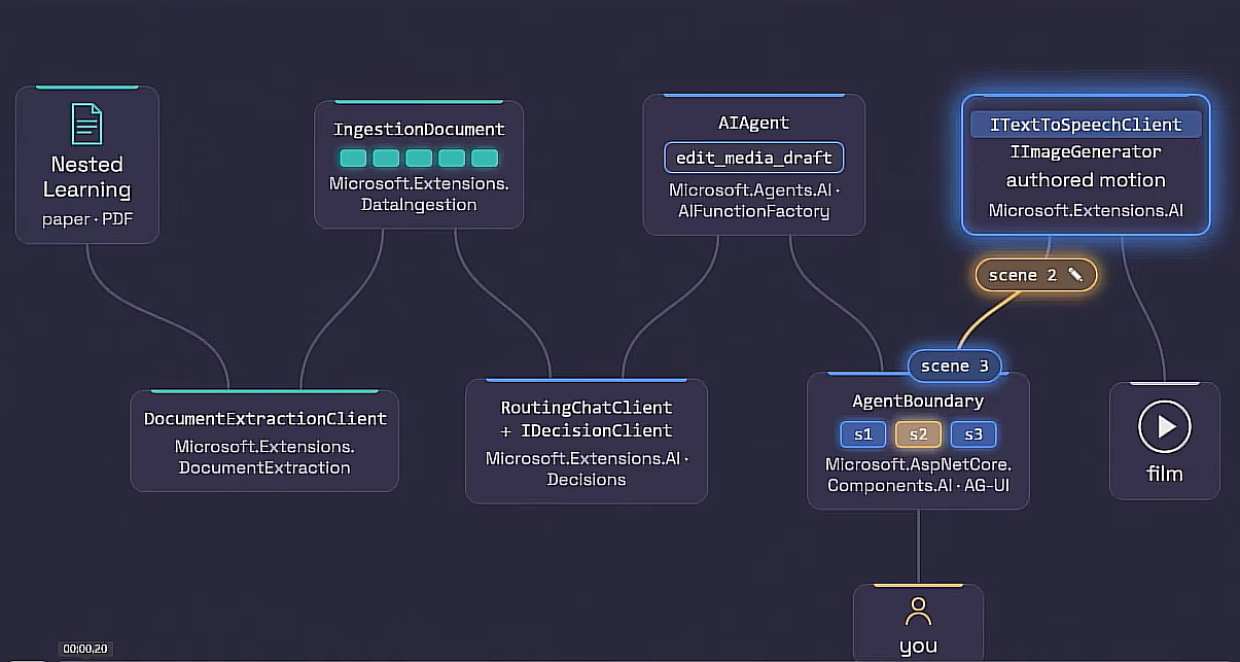
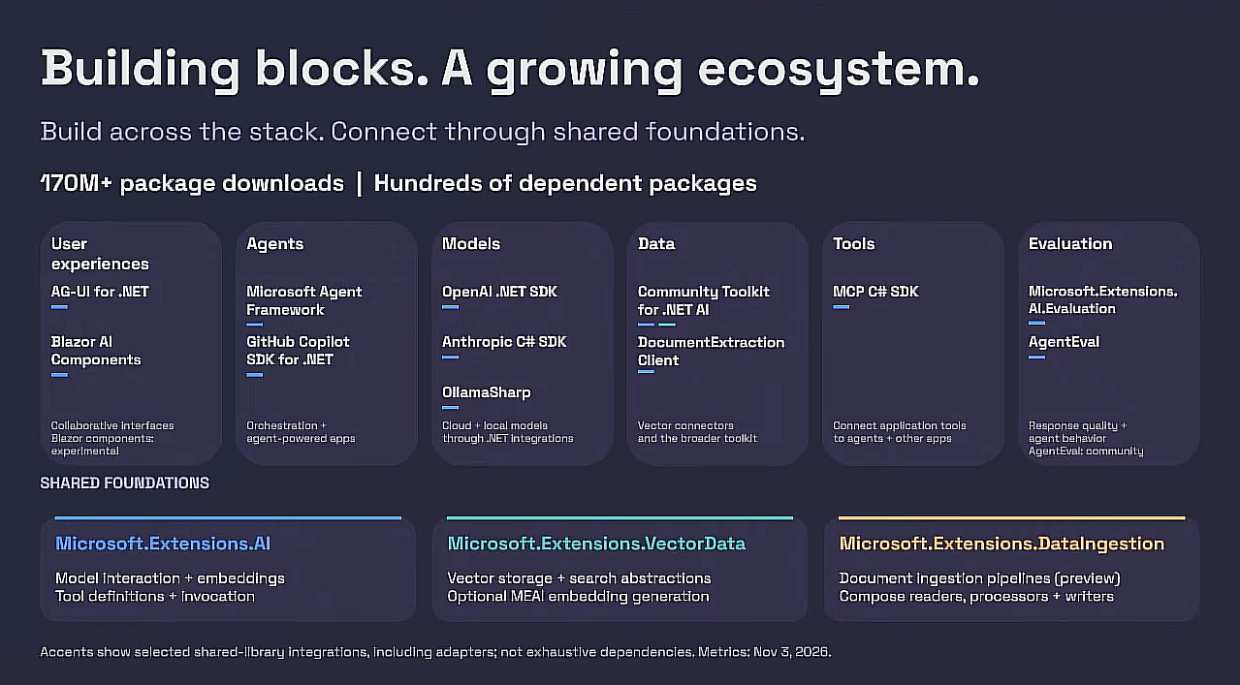
.NET AI Stack for .NET 10 and .NET 11 includes several parts that .NET developers combine to build an AI application. Usually you need 12 components for a solid architecture. Each component does its own job, from connecting to the model to integrating agents into the application's interface. Together with Luis Quintanilla from New York, a senior product manager on the .NET team at Microsoft, let's look at how this works. Our example will be building an AI application that converts a PDF into a video. This will let us see the forest for the trees and understand which parts of .NET AI to use at each stage.
Belitsoft's senior .NET AI engineers and AI agent developers design and build enterprise AI applications that brings together LLMs, agents, and traditional application code. These applications can extract information from documents, make OCR, PDF analysis, and prepare data for RAG and LLMs. We build AI agents that call tools, generate video and audio content, carry out sequences of actions, and interact with users. Let's Talk
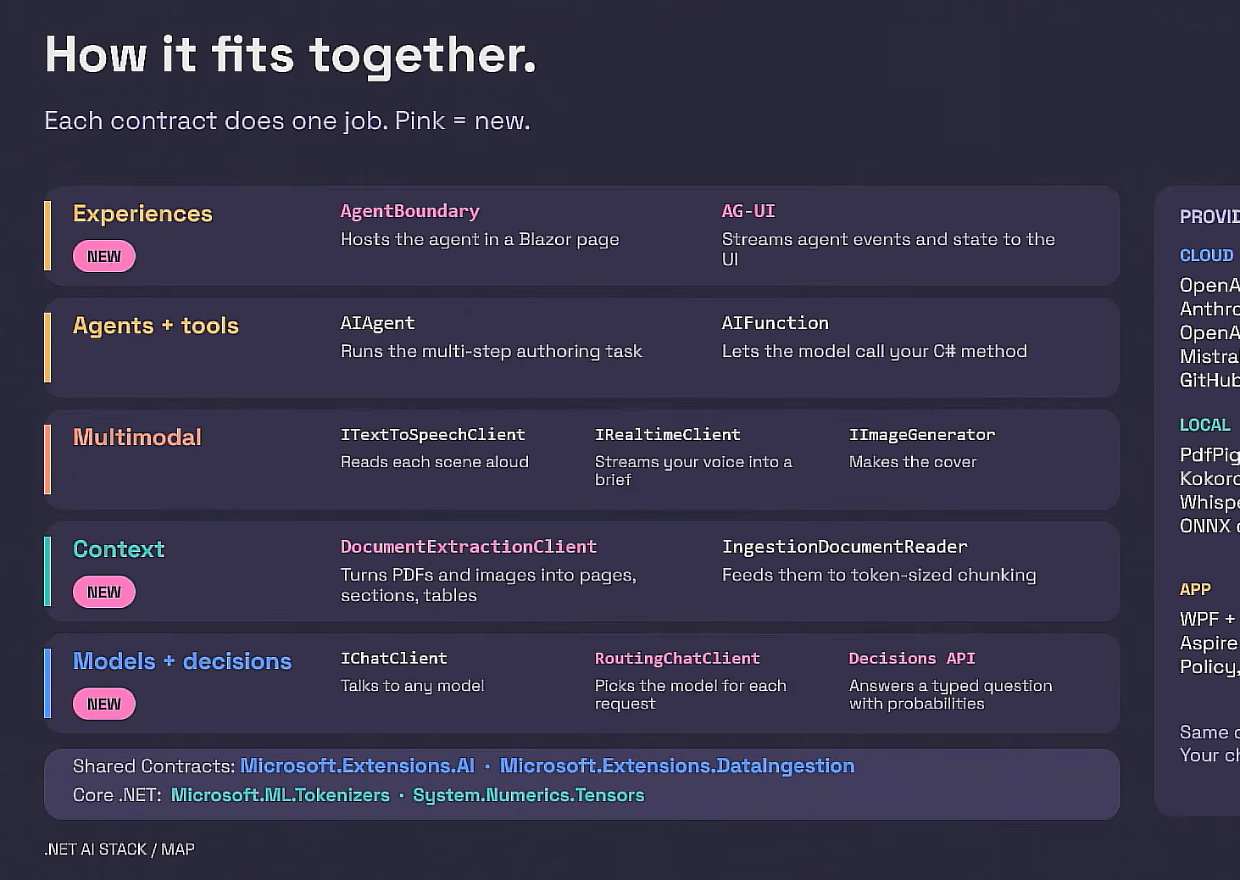
Connect to an LLM (IChatClient)
IChatClient is an interface that connects through an SDK to the LLM model you need, for example one from OpenAI, Anthropic, or local models through the Llama on Windows app (GPT-OSS, Gemma, Qwen, Muse Glimmer, etc.).
- the application code connects to this IChatClient directly when you need a single model call without an agent;
- RoutingChatClient connects to it when there are several models and you have to pick the best one for the current task;
- DocumentExtractionClient connects to it when the document is read by a vision model and not by PdfPig or Mistral OCR;
- IImageGenerator connects to it when a simple picture is made by a chat model instead of a specialized image model, which you can connect later;
- and AIAgent connects to it when the model has to use tools to do work for you, not just answer you.
"What you get there is that your application code stays relatively the same. Changing the model or provider does not change this application loop."— Luis Quintanilla, .NET team at Microsoft, .NET Conf 2026 (November 2026)
https://github.com/Azure-Samples/openai-anthropic-taste-test/tree/mainThis is a code example that shows how to connect two models from different providers through one IChatClient.
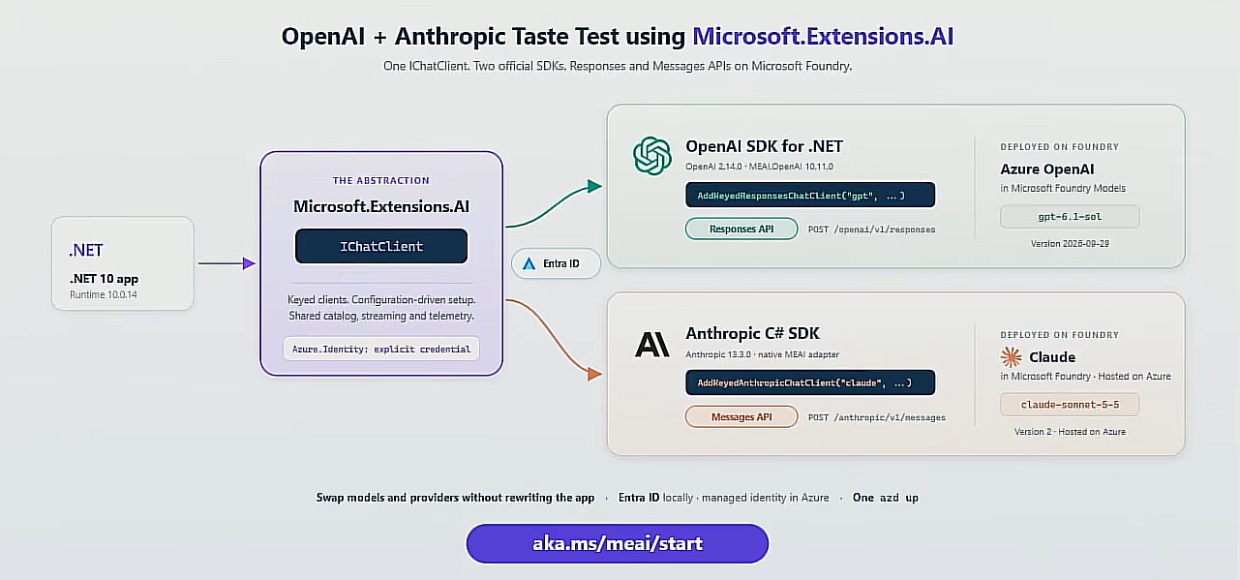
Select the model for each request (RoutingChatClient, IDecisionClient)
.NET application connects to AI models through IChatClient. Each model gets its own IChatClient.
If there are several models, you have to choose which one your .NET application has to use depending on the task. To do that, a router, RoutingChatClient, is placed between IChatClient and the request. RoutingChatClient holds the policy it uses to send requests from the .NET application to the right AI model.
.NET developers write the policy in code, for example as if statements. If the requests come in as free text and there are too many cases for if statements, .NET developers additionally connect IDecisionClient, which decides for the router.
Decision clients come in two kinds: cloud and local.
- An example of a cloud client is the OpenAI Decisions API.
- An example of a local one is an ONNX decision model that runs through ONNX Runtime on your PC.
https://learn.microsoft.com/en-us/samples/azure-samples/azure-openai-starter/azure-openai-starter/This is a code example that shows how to use OpenAI Decisions API.
Extract information from documents (DocumentExtractionClient)
Now we need to make our application read PDFs. For this we connect DocumentExtractionClient. The result is the content of the document: its pages, sections, paragraphs, tables and pictures.
.NET developers have to choose the right reader for their case, because some of them are not very good at extracting pictures or tables, and others are costly or have latency trade-offs.
Potential options are:
- PdfPig for working with PDFs locally;
- a cloud OCR service, Mistral OCR, available through Foundry or Mistral, or Azure Document Intelligence;
- any vision LLM, which looks at the pages of the PDF as pictures.
Chunk the extracted information (IngestionDocumentReader)
After we have extracted the content from the PDF, we need to cut it into chunks, for example 512 tokens in size. The chunks are what goes into the AI model's context.
IngestionDocumentReader feeds what DocumentExtractionClient extracted to chunking. Once the chunks are ready, RoutingChatClient selects the AI model that gets them.
By the way, pictures, if the PDF has any, are not chunked: they go to a vision model as is.
Text-to-Speech and Speech-to-Text (ITextToSpeechClient, ISpeechToTextClient)
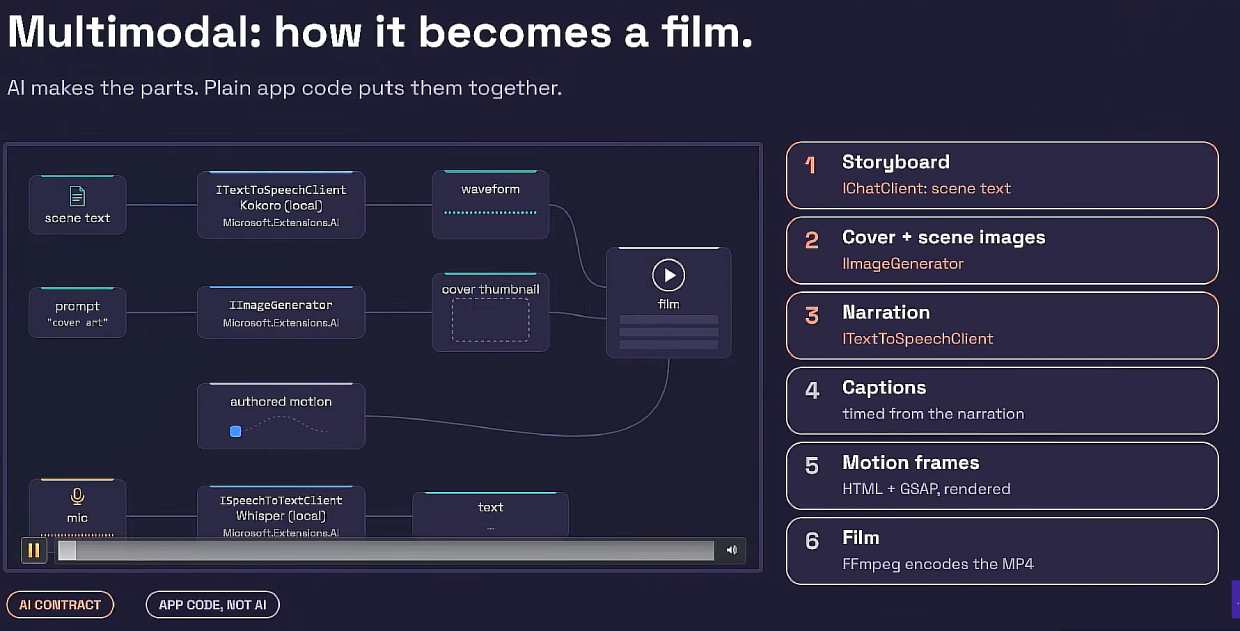
When our .NET application needs features such as turning text into voice, for example, for a video voice-over, we have to connect an LLM through ITextToSpeechClient. This client takes the scenes created by the AI model based on the PDF file and turns them into a voice-over. By the way, local models like Kokoro are pretty good at these tasks. After that, we only need to add plain code that syncs the captions to the voice.
Besides, the default format for the app's user is typing text in the chat window, but modern UX requires entering text by voice. This is needed, among other things, when we give instructions on editing the results of the agent's work. We will be making some edits. Of course, it is more convenient to do this by voice. Accordingly, this feature is set up through ISpeechToTextClient, which uses the audio from the mic and turns it into text. A local Whisper model can do this, or we can connect to the cloud, to a real-time model such as OpenAI Realtime, through one more client, IRealtimeClient.
Generate images from text (IImageGenerator)
If our application needs to generate pictures from text (for example, we will definitely need this when creating illustrations for the scenes of the video), we have to add IImageGenerator.
It connects the application to an AI model that turns text prompts into pictures. It can be either a specialized image model or a regular text model that can generate SVG code. Then this SVG picture can be turned into PNG, also using plain application code. Then we also add code that joins the resulting pictures into a video and syncs it to the voice-over. We make the animations in the scenes with the GSAP JavaScript animation library.
Make the app's functionality available to agents as tools (AIFunction)
We have to give the AI model tools so that the model can do work for us, for example, video authoring. A tool is a function of our application that the model can call. .NET allows you to make this function available to AI models as a tool through AIFunction from a standard C# method, or through the MCP C# SDK.
To turn a method into a tool, AIFunctionFactory class from Microsoft.Extensions.AI takes the method's name and description of what it does, and turns it into an AIFunction. This way, our custom Media Draft tool can create the scenes of the video from the PDF inside our .NET application.
Create an AI agent (Microsoft Agent Framework, AIAgent)
If our application needs an AI model to work with tools in several steps, for example, for video authoring, we have to create an AI agent. An agent is a model to which we add instructions, tools, and sources.
In our case, the agent builds the storyboard, writes the scenes from the PDF, and then edits them, getting input from the user, the editor, including rewriting scenes.
For this, we can use AIAgent from Microsoft Agent Framework.
We also have to connect the agent to our .NET application's interface, so that users see the changes in real time.
To work, our agent runs either on an AI model through IChatClient, or on the GitHub Copilot SDK in the cloud.
Integrate agents into the application's interface (AG-UI)
The AI application needs the user and the agent to work together.
For example, our PDF to video AI application must have a conversation pane where you can both chat and see the sequence of events, including the steps the agent has taken. The user can watch the agent write the scenes, see the changes in real time, inspect them, and make changes to any scene by a request to the agent.
For this purpose, there's the AG-UI protocol. Through it, our agent can connect to the application interface, and the interface shows right away what the agent is doing, which tools it uses, and how the work is going. In .NET, you connect your agent and your front end to AG-UI using the C# SDK.

Rate this article