 Newshot
1 · Your photo
2 · Describe the change
0 / 1000 characters including instructions.
These requests guide the AI; they do not lock pixels. Check faces, labels and nearby objects. Keep the change and preservation requests compatible.
Browse all tools and tasks → · Add exact text or crop for free →
Original uses the closest supported ratio to your photo. A new ratio may change the framing.
Faces and fine details can change with either model. The cost shown applies to each generation.
Format applies when downloading. PNG does not remove a background. PNG and WebP preserve existing transparency; JPG uses a white background.
New accounts receive 2 free credits. GPT Image 2 uses 1; Nano Banana 2 uses 3.
Image to image AI: transform any photo with a prompt
Image to Image AI is a browser-based AI photo editor and image to image generator: upload a photo, describe the change in plain words, and the AI redraws it. Turn a picture into a coloring page, sketch or cartoon, or try other edits, for example a watercolor look or a new background, then compare the result with your original.
- 2 free credits on sign-up
- Purchased credits never expire
- Before / after slider
- Private by default
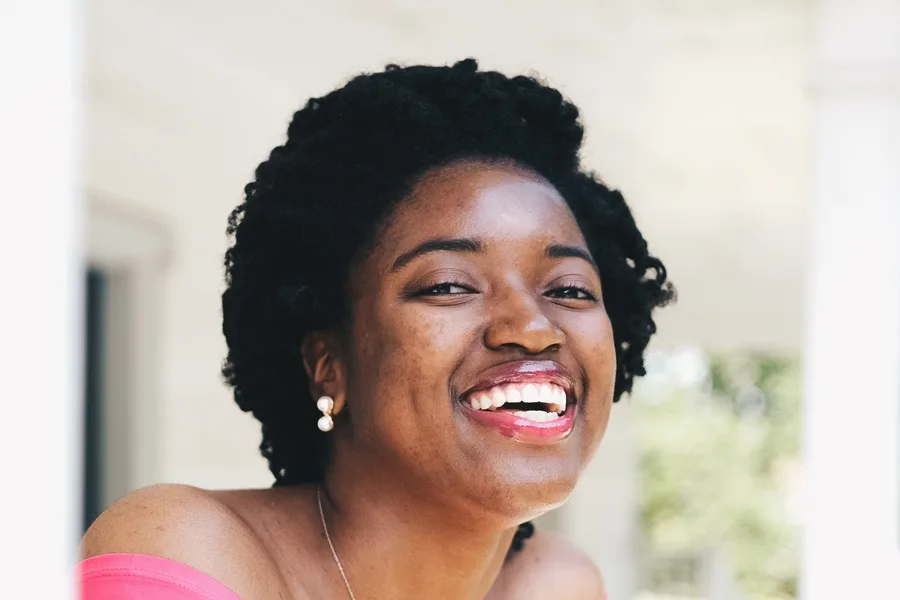
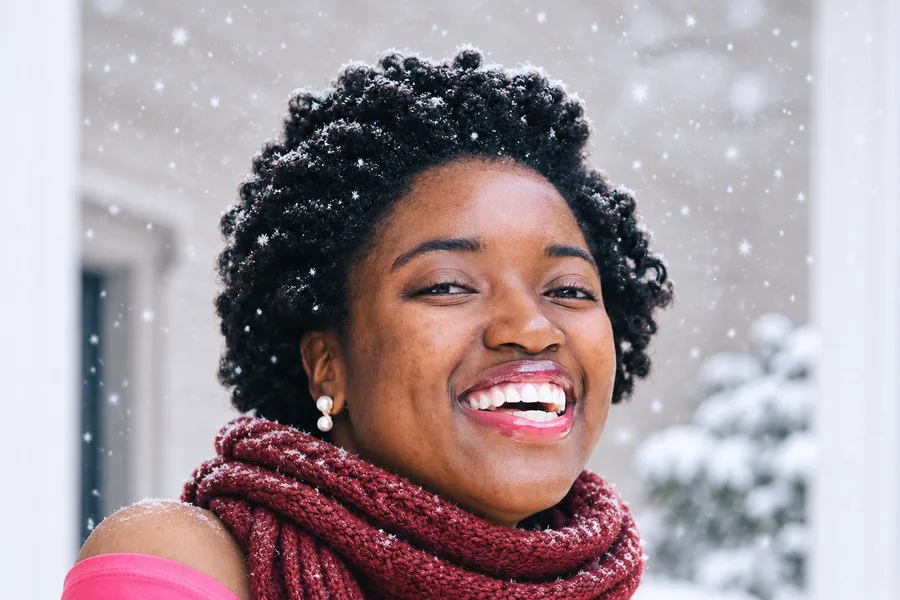
Saved example · gpt-image-2. Drag the slider to compare. Upload your own photo to try your settings.
Photo: Joshua McKnight / Wikimedia Commons · CC0 1.0 (input)
Change the scene to a snowy winter day: add a warm knit scarf and gently falling snow. Keep her face, hair, smile and pose exactly the same.
Face, smile, hair and earrings stay recognizable and the framing holds. The scarf covers her necklace, snow settles in her hair and the porch turns wintry. Input cropped to 3:2; first and only attempt.
What you can do with image to image AI
Six different photos, six recorded edits. Open an editor or reuse the exact prompt.
Have a specific problem? Explore 12 measured photo editing use cases, including backgrounds, product photos, local edits and pet gifts.
Portrait background
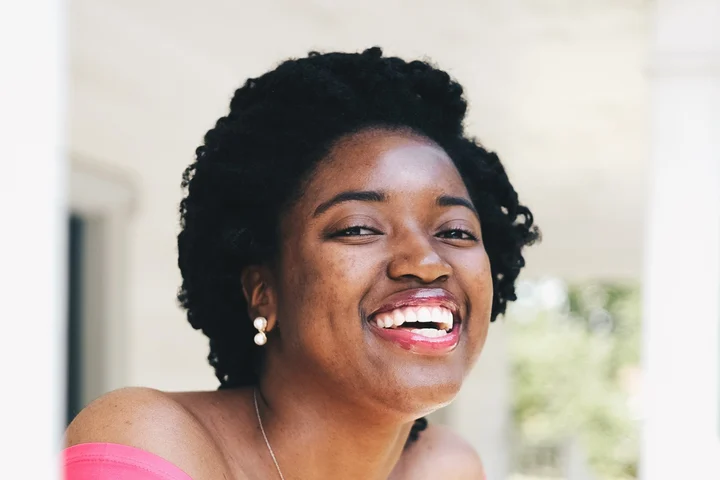
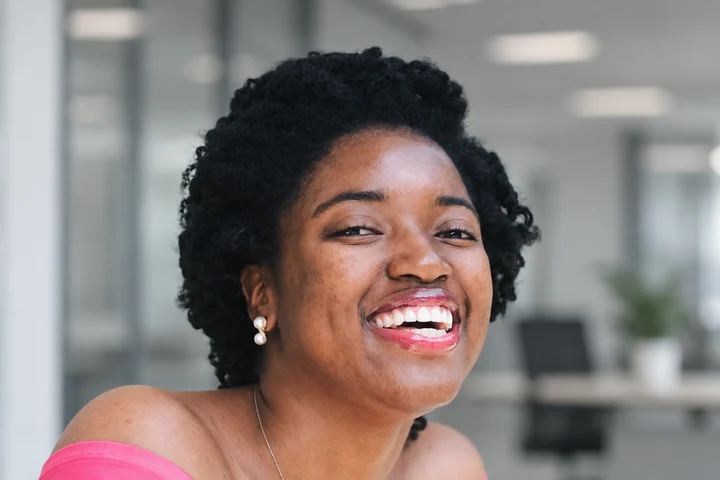
Replace a portrait's background with a softly blurred office.
Hair and skin texture were redrawn; check the likeness.
“Replace only the background behind this woman with a softly blurred modern office in neutral gray tones. Keep her face, age, skin tone, skin texture, hair silhouette, smile, teeth, earrings, necklace, pink shirt, body pose and framing unchanged. Do not beautify, retouch, change clothing, add people, crop or zoom. Return one realistic edited photo.”
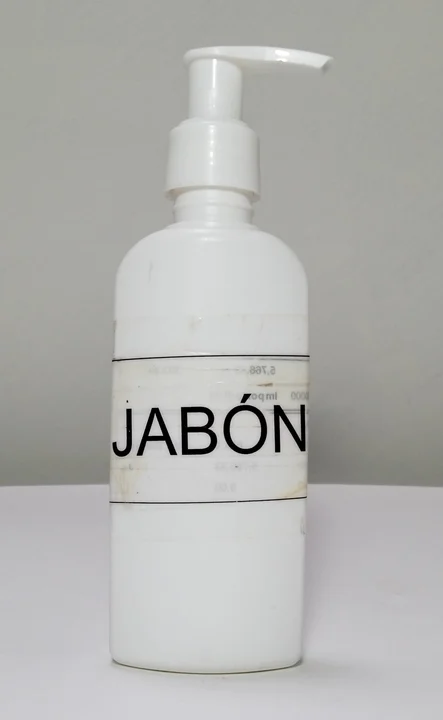
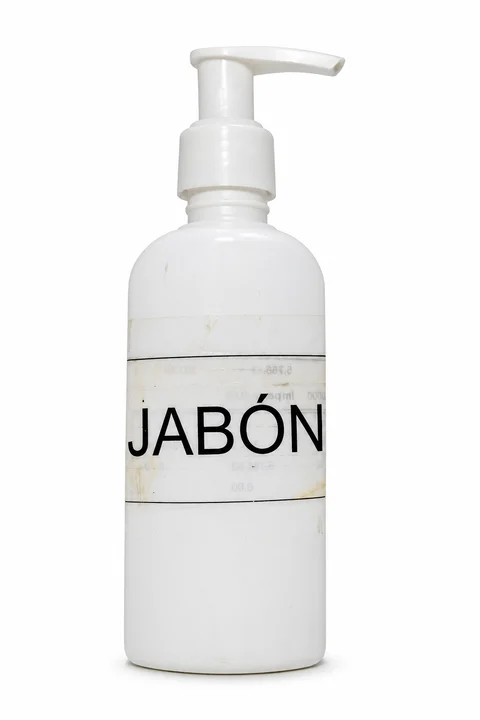
Product on white
Place a soap dispenser on a white background with a contact shadow.
Check the label at full size. The output's aspect ratio changed slightly.
“Replace only the gray background and tabletop with a seamless pure white studio background. Keep the exact soap bottle, pump shape, nozzle direction, label, all printed letters including JABÓN with its accent, worn marks, original proportions and framing. Add only a subtle natural contact shadow below the bottle. Do not clean up, redesign, relabel, crop or zoom the product. Return one realistic product photo.”
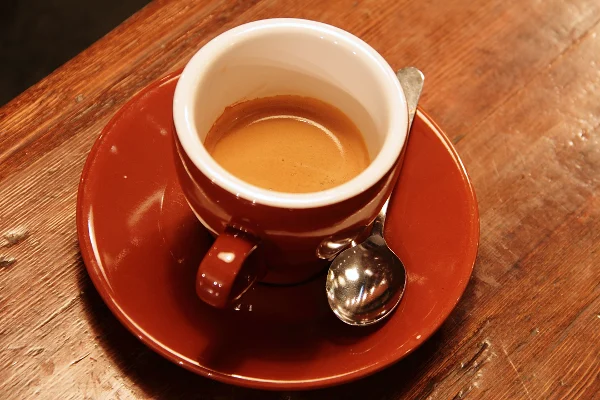
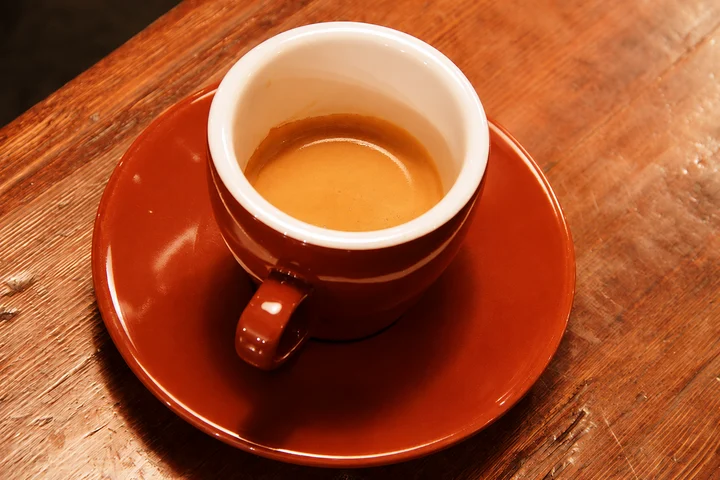
Remove a small object
Remove the teaspoon beside a coffee cup and fill the surrounding surface.
Fine wood grain and reflections also changed outside the removed spoon.
“Remove only the metal teaspoon resting on the right side of the coffee saucer, including its visible handle behind the cup. Fill the removed area naturally with the existing saucer and wooden table textures. Keep the coffee, cup, handle, saucer outline, their colors, wood grain outside the removed region, lighting, camera angle and framing unchanged. Do not add objects or redesign the scene.”
Remove background people
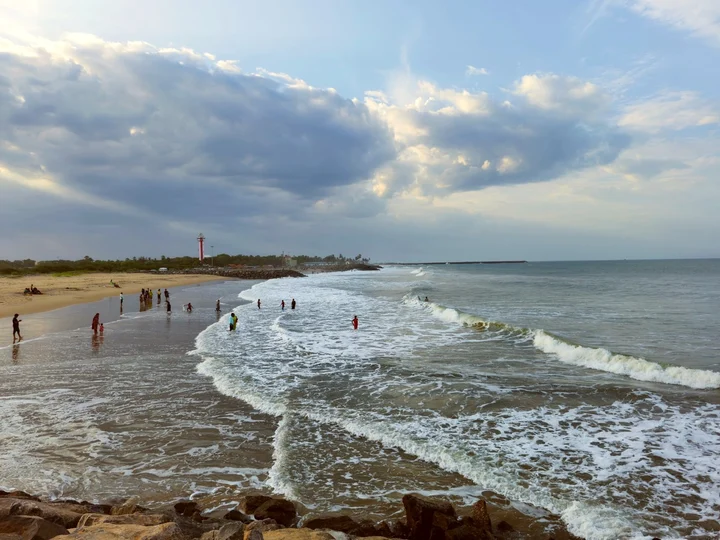
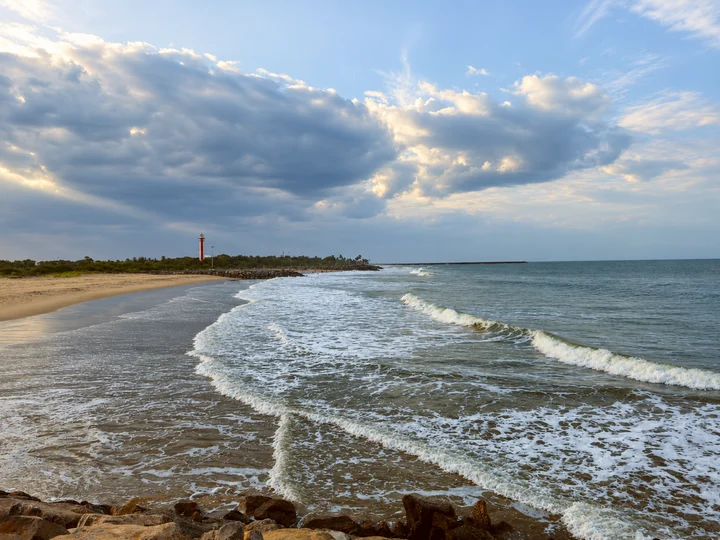
Remove visitors from a beach while keeping the lighthouse and horizon recognizable.
This example removes all people. Waves and parts of the coastline were redrawn.
“Remove all people from the beach and the water, including the small distant figures. Fill their former positions naturally with sand or waves as appropriate. Preserve the red-and-white lighthouse, horizon, rocks, cloud shapes, coastline, lighting, original colors, camera angle and framing. Do not add people or objects, crop or change the weather. Return one realistic edited photograph.”
Pet cartoon
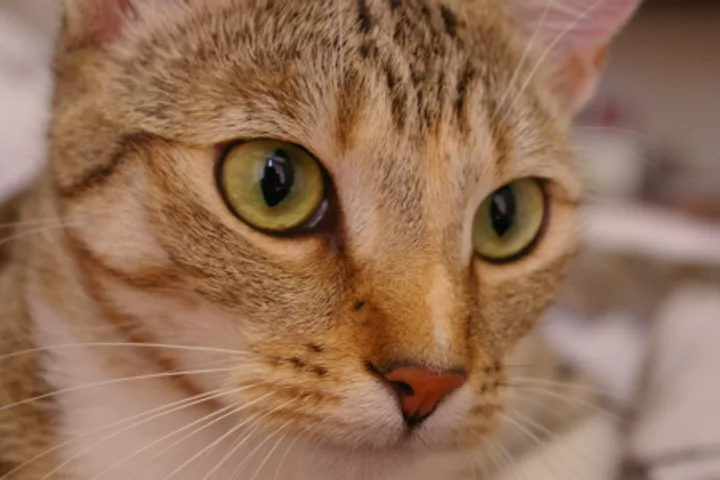
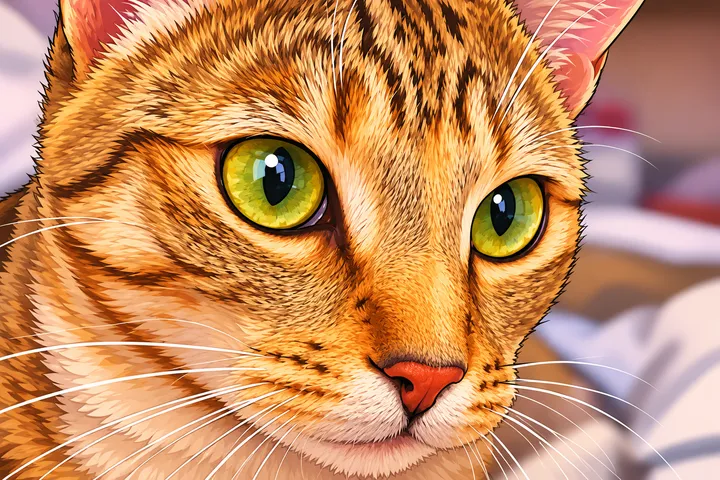
Turn a tabby cat photo into a colorful illustration.
The pose stayed recognizable; the fur became warmer and more saturated.
“Turn this photo into a colorful cartoon illustration, keeping the same pose and composition”
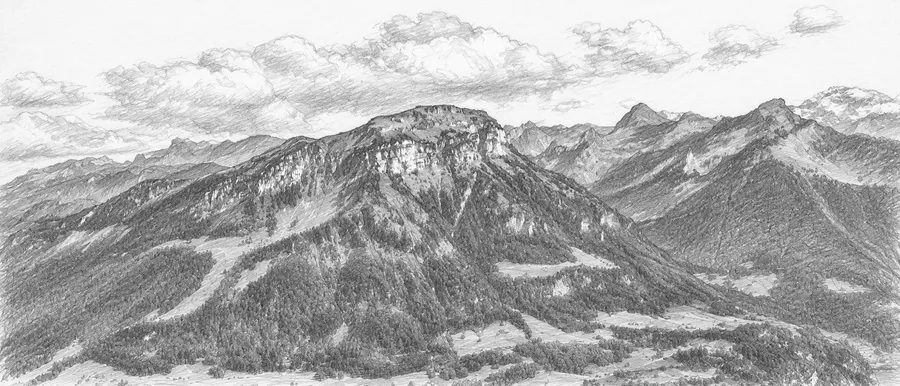
Landscape pencil sketch
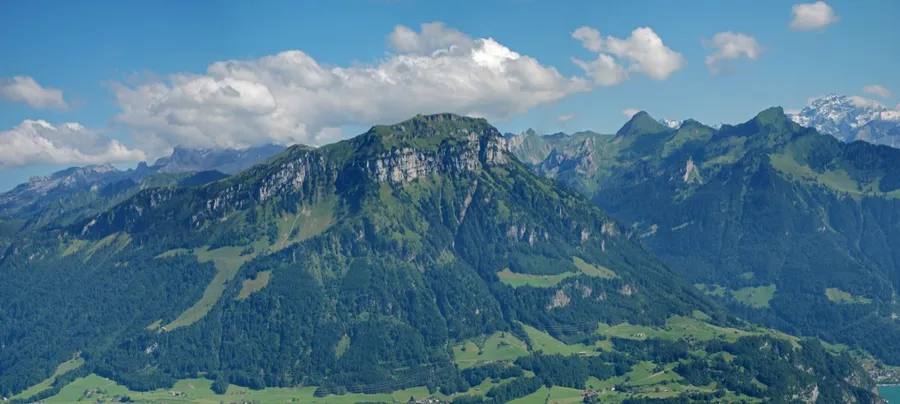
Redraw an Alpine panorama as a graphite sketch on white paper.
The ridge and valley are recognizable; distant buildings and vegetation are approximate.
“Turn this photo into a graphite pencil sketch on white paper. Preserve the main subject, proportions and recognizable composition. Use natural hand-drawn pencil lines and subtle crosshatching, grayscale only, no color, no added objects, no text or watermark.”
How to use image to image AI
Three steps from your photo to a new image you can compare. New to this? Learn how image to image AI works and how it differs from text to image.
- STEP 01Upload a photoUse a clear JPG, PNG, WebP or iPhone photo. The AI works from your picture and aims to preserve the subject and layout, but details can change.
Upload a photo
Use a clear JPG, PNG, WebP or iPhone photo. The AI works from your picture and aims to preserve the subject and layout, but details can change.
- STEP 02Describe the changeWrite what should change in one or two sentences, or start from an idea below. Say what must stay the same.
Describe the change
Write what should change in one or two sentences, or start from an idea below. Say what must stay the same.
- STEP 03Compare and downloadDrag the slider to compare the result with your photo. Adjust the prompt and generate again, then download the one you like.
Compare and download
Drag the slider to compare the result with your photo. Adjust the prompt and generate again, then download the one you like.
Edit an image with an AI prompt
Image to Image AI works as an AI image editor with prompt control: you change the photo you upload with words instead of starting from a blank canvas. Write one change, then say what must stay, for example “Replace the background with a quiet garden; keep the cat, its pose and the framing.”
The AI redraws the whole image, so compare the result with your original and adjust one part of the prompt at a time. For a step-by-step method with prompts to copy, read how to edit photos with AI.
Tools for specific jobs
Tools with settings made for one task, so you do not have to write a prompt. See them side by side, each with a real result, on the AI photo styles page.
Photo to coloring page
Turn a photo into a coloring page in your browser: Image to Image AI's photo to coloring page tool makes a black-and-white coloring sheet from a family photo, pet or favorite object. Choose the outlines and detail level, compare the result, then print it on A4 or US Letter.
Photo to sketch
Turn a photo into a sketch without drawing it yourself: Image to Image AI's photo to sketch tool reinterprets a portrait, pet or scene as a hand-drawn sketch. Choose graphite, charcoal or pen, then guide the shading and compare the drawing with your original photo.
Photo to cartoon
Turn any picture into a cartoon in your browser: Image to Image AI's photo to cartoon tool redraws a portrait, pet or everyday scene as an illustration. Pick a cartoon direction, generate a new version, and compare how the AI interprets the shapes and colors.
AI room design
Restyle a room from a photo in six interior styles, or furnish an empty room, while asking the AI to preserve the walls, windows and doors. Compare the result for changes.
What image to image AI can and can't do
The AI redraws your photo, so it is good at some edits and unreliable at others. When we tested three image to image AI models on the same photos, every model redrew or dropped some small details.
Works well
Restyling a whole photo, such as a coloring page, sketch, cartoon or watercolor look, and changing the background or mood of a scene.
Can change details
Faces, hands, small text and fine patterns can change even when you ask to keep them. Compare every result with your original.
Not supported
Creating an image from text alone, video, watermark removal and upscaling. Restoring an old photo is an AI redraw, not recovered detail.
Pay once. No subscription.
GPT Image 2 uses 1 credit per image; Nano Banana 2 uses 3. Failed images are refunded automatically, and downloading or comparing an image you already have is free.
$9.99/ 60 credits
Enough to try plenty of ideas on your photos. Pay once; there is no subscription.
- 60 credits, about 17¢ each
- Every tool, including AI room design
- Any prompt, any photo
- Purchased credits never expire
- Failed images refunded automatically
- Private to your account
$19.99/ 200 credits
For bigger projects and lots of versions, at the lowest price per credit.
- 200 credits, about 10¢ each
- Everything in the Starter Pack
- Room to try many versions of each photo
- Purchased credits never expire
- Failed images refunded automatically
Every new account starts with 2 free credits, which expire after 30 days. Prices in USD; taxes may apply. Secure checkout by Stripe.
Image to image AI FAQs
Credits, privacy and what to expect from a result.
Image to image AI creates a new image from a photo you already have. You upload the photo and describe the change in words, and the AI redraws it. Ask it to preserve details such as the subject, pose or layout, then compare the result: AI can change details you wanted to keep.
Upload the photo in the editor at the top of this page, describe the change in one or two sentences, and generate. The AI redraws your photo as a new image. Compare it with your original using the slider, then download it or adjust the prompt and try again.
Partly. Without an account you can upload a photo, write your prompt and view saved example results. Generating an image from your own photo needs an account with a verified email or phone number. New accounts get 2 free credits, which expire 30 days after sign-up.
GPT Image 2 uses 1 credit per image; Nano Banana 2 uses 3, shown on the button before you click. Generating again creates a new version and uses the selected model’s credits. Downloading or comparing an image you already have is free.
Credits come in one-time packs: 60 credits for $9.99 or 200 credits for $19.99. There is no subscription. Purchased credits never expire; the 2 free credits expire after 30 days.
A technically failed or timed-out generation returns any deducted credits automatically; check the task's refund status. A connection error while checking a task is not necessarily a generation failure. Recover the original request or open My Designs before generating again. A completed result you dislike is not refunded.
Choose JPG for an ordinary photo, or PNG or WebP to preserve transparency already present in a result. Choosing PNG does not remove a background. JPG cannot store transparency and uses a white background. Downloads retain the generated pixel dimensions; they do not upscale the image.
Not always. The AI redraws the whole image, so faces, hands and small text can change even when you ask it to keep them. Say what must stay, for example “keep the face exactly as it is”, and compare the result with the slider.
Only you, when signed in. Uploads and results are private to your account and are never added to a public gallery. To create each image, your photo and prompt are sent to APIMart, our image generation provider. Delete an upload and its versions from My Designs after processing finishes. Site deletion does not confirm deletion of provider-held copies; we have not verified the provider’s retention period.
Turn your photo into something new
Start with 2 free credits and compare every result with your original.